Migrate from Single Node to 3-Tier Node Architecture
Our step-by-step plan for moving a busy app from one server onto several, and the mistakes that caused downtime before we had one.
TL;DR
We moved a live app from one server to separate servers for the app, database, cache and file storage. Copying the data was the easy part. The outages came from TLS and from which server could reach which.
The order that works: lower DNS TTL a day early, build and test the new servers while the old one still serves users, switch the old one to maintenance mode, take a final database copy and check row counts per table, sync changed files, deploy, install the existing certificate, and only then point DNS at the new servers. Stop the old scheduler and workers in the same step.
Seven traps:
- Copy the app's encryption key, or encrypted data becomes unreadable.
- MySQL only uses TLS from PHP when you give it a certificate file path.
- On Ubuntu, MySQL may silently start without TLS because of AppArmor, and every login then looks like a wrong password.
- Database dumps need extra flags on servers with GTID turned on.
- Private storage is reachable from the app servers, not from your laptop. Keep it private and work from inside the network.
- Always dry-run a file sync with delete. Ours would have deleted 93 photos.
- Two schedulers running at once send every email twice.
Rollback is pointing DNS back, but any writes on the new servers are lost. Keep the trial window short.
Short on time? The summary above is the whole story. Want the details, the examples and the fixes? Read on.
Most Laravel apps start on one server. Nginx, PHP-FPM, MySQL, Redis, the uploads folder, cron and the queue workers all live on the same box, and for a long time that is the right call. It is cheap, it is simple, and every failure is in one place.
At some point the box becomes the problem. A slow report query starves PHP-FPM of CPU. A disk fills up with uploads and takes the database down with it. You cannot resize the database without taking the whole site offline. That is usually when we split the app across several servers.
We have done this move several times now. The data copy has always been the easy part. Most of our failures came from two other places: TLS between the servers, and which machine can reach which other machine on the network. This article is the runbook we use, followed by the traps we hit, each with the symptom you will see and the fix.
The example app is called shop. Hosts are app-1, db-1, cache-1 and store-1, on a private network in 10.0.0.0/24.
Why move at all
Splitting the box gives you three things:
- Independent sizing. The database gets the RAM and fast disk it needs. The app server gets CPU. You stop paying for both on one large machine.
- Independent failure. A runaway upload or log file fills the app disk without touching the database.
- A path to more app servers. Once state lives outside the app server (database, sessions, cache, files), you can run two or three app servers behind a load balancer.
The cost is more moving parts and a network between them. The rest of this article is about managing that cost.
The target layout
Before and after:
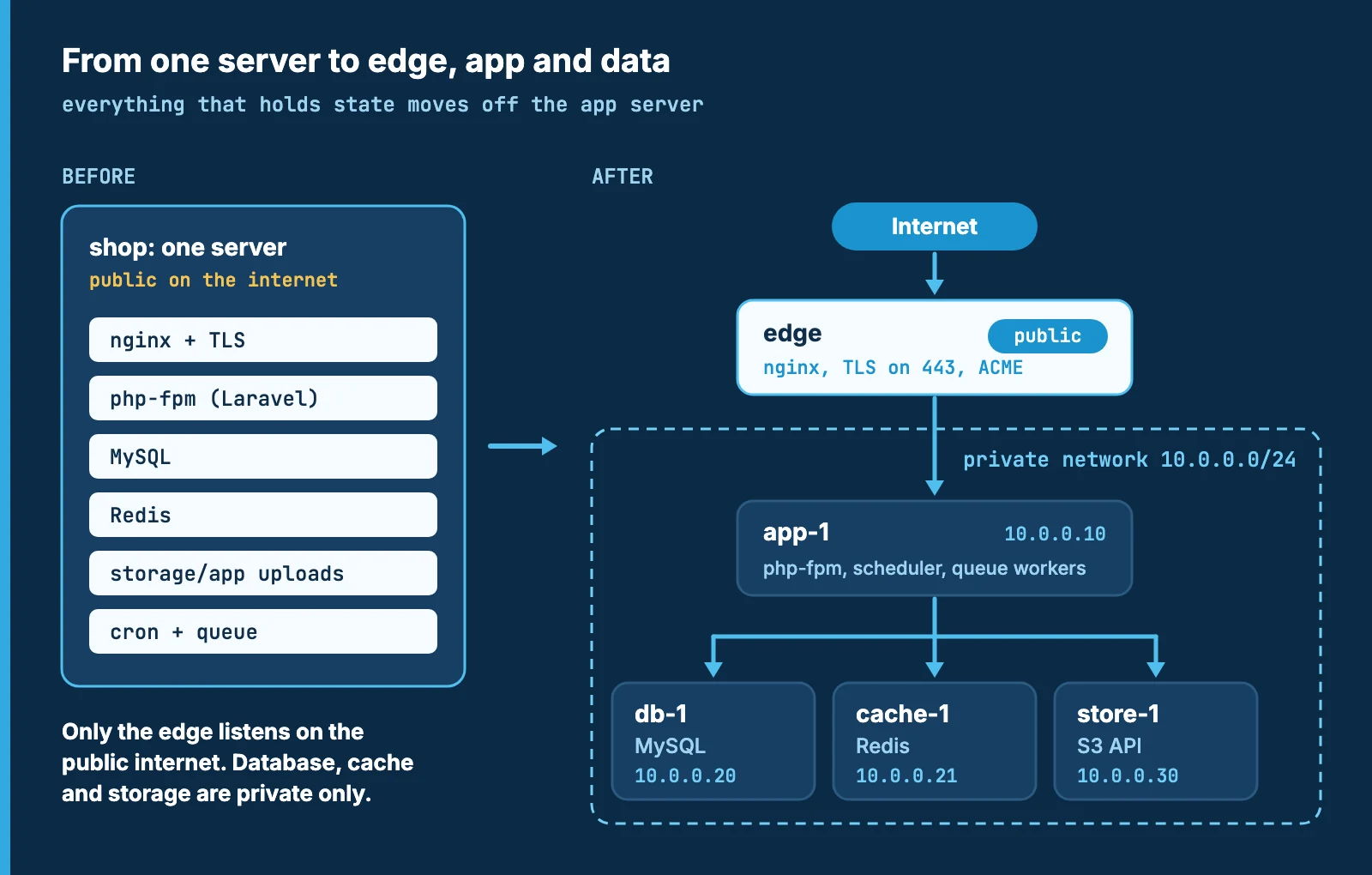
The edge can be nginx on app-1 itself. What matters is that only the edge listens on the public internet. The database, cache and object storage listen on the private network only.
In .env on app-1, that looks like this:
DB_HOST=10.0.0.20
DB_DATABASE=shop
MYSQL_ATTR_SSL_CA=/etc/ssl/shop/db-ca.pem

REDIS_HOST=10.0.0.21
SESSION_DRIVER=redis
CACHE_STORE=redis
QUEUE_CONNECTION=redis

FILESYSTEM_DISK=s3
AWS_ENDPOINT=http://10.0.0.30:9000
AWS_USE_PATH_STYLE_ENDPOINT=true
AWS_BUCKET=shop-media
If you later add replicas
Once state is off the app server, adding app replicas is mostly configuration. The layout we use:
- The load balancer runs on loopback behind the primary app server's nginx. That nginx keeps port 443, the certificate and ACME renewal.
- Backends are the replicas' own nginx. Forward the
Hostheader so each replica serves the right site. - Use an HTTP health check that sends that
Hostheader. A plain TCP check will happily pass a replica whose PHP-FPM is dead, because nginx is still accepting connections. - Do not list the primary as a backend. Its nginx is the front door, and pointing the load balancer back at it creates a loop.
- Only the primary runs migrations, the scheduler and queue workers. Replicas are web-only.
- Build every replica from the same release ref as the primary.
- Keep sessions and cache in Redis so any replica can serve any user.
The cutover runbook
The guiding rule: cut DNS last. Everything else should already be working on the new servers before a single real user reaches them.
We learned this the hard way. On one move we flipped DNS before the app was fully live on the new host. Users got 526 errors from the CDN (invalid origin certificate) and then 503s for somewhere between 10 and 45 minutes, depending on their resolver. The servers were fine. They just were not ready yet.
Here is the order we follow now.
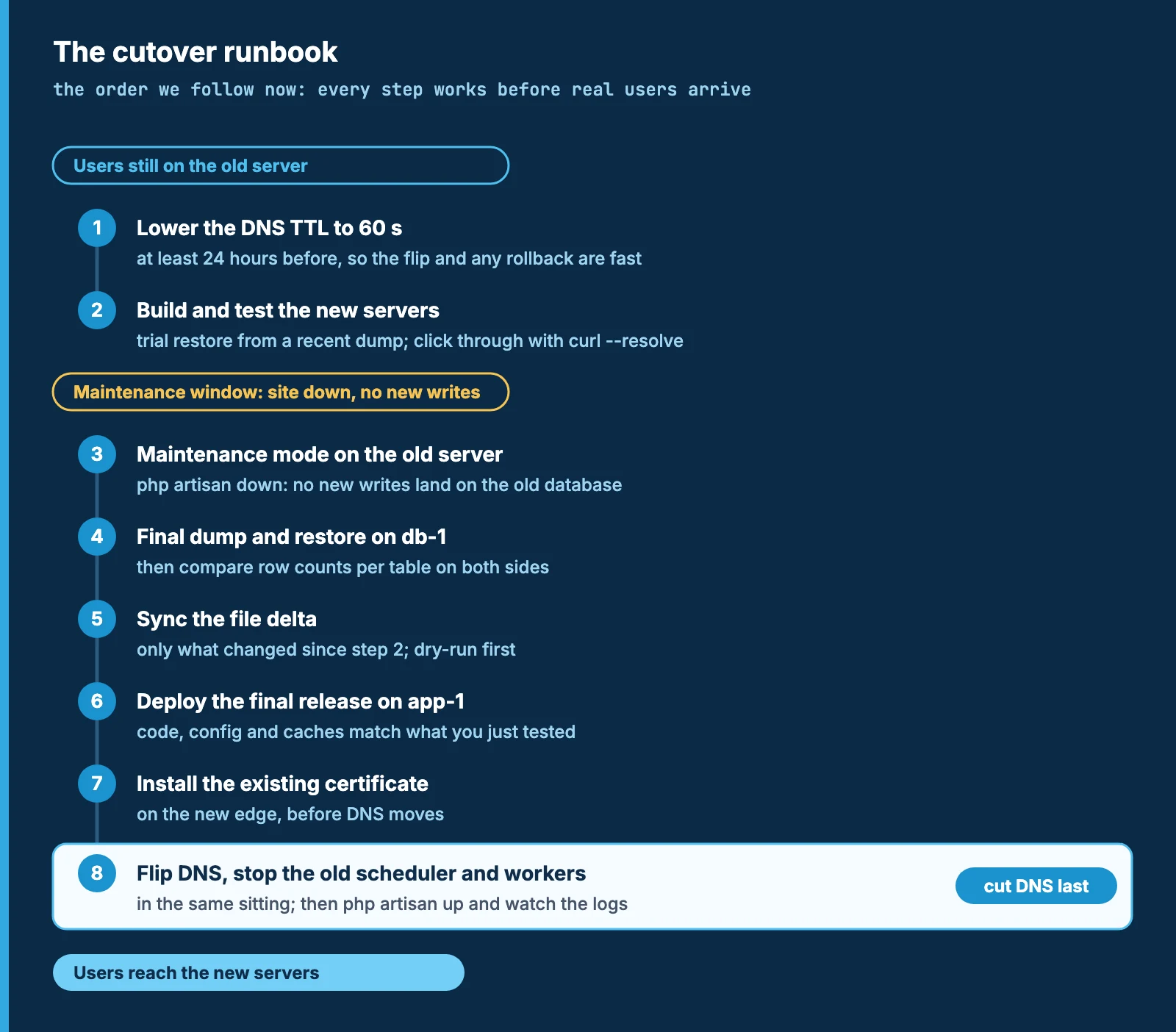
1. Lower the DNS TTL at least 24 hours before
Set the TTL on the app's record to 60 seconds a day or more in advance. Resolvers that cached the old TTL need time to expire it. If you skip this step, the flip and any rollback will take as long as your old TTL.
2. Build and test the new servers ahead of time
Provision db-1, cache-1 and store-1. Deploy the app to app-1 with the production .env, pointing at the new services. Do a trial restore from a recent dump and click through the site using a hosts-file override or curl --resolve:
curl --resolve shop.example.com:443:203.0.113.10 https://shop.example.com/up
Fix every TLS and connectivity problem now, while the old server is still serving users. The traps section below covers the ones we hit.
3. Put the old server into maintenance mode
php artisan down --retry=60
From here on, no new writes land on the old database.
4. Take the final dump and restore it
Dump from the old server, restore on db-1. The flags matter on GTID-enabled servers; see trap 3. Then compare row counts per table on both sides:
for t in $(mysql -N -e "SHOW TABLES" shop); do
  printf '%s\t%s\n' "$t" "$(mysql -N -e "SELECT COUNT(*) FROM \`$t\`" shop)"
done > counts.txt
Run it on both servers and diff the two files. On our last cutover this check covered 31,218 rows with zero mismatches. It takes seconds and it is the only proof you have that the restore is complete.
5. Sync the file delta
You already copied uploads during step 2. Now copy only what changed since then. Dry-run first (trap 5 explains why).
6. Deploy the final release on the new server
Run your normal deploy on app-1 so code, config and caches match what you just tested.
7. Install the existing certificate on the new edge
Copy the current certificate and key to the new edge before DNS moves. ACME HTTP-01 validation cannot issue a new certificate for the domain until DNS already points at the new server, so without this step your first minutes on the new host are served with no valid certificate. Let the new server renew normally once DNS has settled.
8. Flip DNS and stop the old scheduler and workers in the same step
Change the record to the new edge. In the same sitting, disable cron and stop the queue workers on the old server (trap 6 shows how). Then bring the new site up if it is down:
php artisan up
Watch logs on app-1 until traffic arrives and errors stay flat.
The traps
Trap 1: encrypted data is unreadable after the move
Symptom. Users with two-factor authentication cannot log in. Pages that show personal data throw The MAC is invalid or DecryptException.
Mechanism. Laravel encrypts encrypted casts, 2FA secrets and anything passed through Crypt with APP_KEY. If the new server runs php artisan key:generate or ships with a fresh .env, every encrypted column is now ciphertext that nothing can read.
Fix. Carry APP_KEY from the old .env to the new one, unchanged. Treat it as part of the data, because it is. If you also rotated keys at some point, carry APP_PREVIOUS_KEYS too.
grep -c '^APP_KEY=base64:' /var/www/shop/.env # expect 1 on both servers
Compare the values out of band. Do not paste them into chat or tickets.
Trap 2: MySQL over TLS silently falls back to plain text
Symptom. With require_secure_transport=ON on db-1, the app fails with:
Connections using insecure transport are prohibited while --require_secure_transport=ON
Mechanism. PDO's MySQL driver ignores ?sslmode=require in a DSN or URL. That option comes from PostgreSQL. The MySQL driver starts TLS only when you give it a CA file path through PDO::MYSQL_ATTR_SSL_CA.
Fix. Copy the database server's CA bundle to the app server, make it readable by the PHP-FPM user, and point the connection at it. Recent Laravel skeletons already read the variable in config/database.php:
'mysql' => [
    // ...
    'options' => extension_loaded('pdo_mysql') ? array_filter([
        PDO::MYSQL_ATTR_SSL_CA => env('MYSQL_ATTR_SSL_CA'),
    ]) : [],
],
Then set the path in .env:
MYSQL_ATTR_SSL_CA=/etc/ssl/shop/db-ca.pem
Confirm the connection is actually encrypted:
php artisan tinker --execute="dump(DB::select(\"SHOW STATUS LIKE 'Ssl_cipher'\"));"
An empty Value means the connection is plain text.
Trap 3: MySQL starts without TLS and every login looks like a bad password
Symptom. You configured certificates on db-1 and enabled require_secure_transport. Now every remote login fails. It looks like an authentication or grant problem, and you can lose an hour resetting passwords.
Mechanism. Ubuntu's AppArmor profile for mysqld only allows reads from a few paths, mainly under /etc/mysql. If your certificates live somewhere else, mysqld cannot read them and starts without TLS. With secure transport required, no remote client can connect. The real cause appears only in the kernel log:
sudo journalctl -k | grep 'apparmor="DENIED"' | grep mysqld
Fix. Add read rules to the local override file, reload the profile and restart MySQL:
# /etc/apparmor.d/local/usr.sbin.mysqld
/etc/ssl/mysql/ r,
/etc/ssl/mysql/** r,
sudo apparmor_parser -r /etc/apparmor.d/usr.sbin.mysqld
sudo systemctl restart mysql
Verify that the server has loaded a certificate:
mysql -e "SHOW GLOBAL STATUS LIKE 'Ssl_server_not_after';"
A non-empty value means TLS is on. An empty value means it is still off.
Trap 4: mysqldump fails on a GTID server
Symptom. Dumping as the app user fails with an error about the RELOAD or FLUSH_TABLES privilege. Dumping as root works, but the import on the new server stops at a SET @@GLOBAL.GTID_PURGED statement it refuses to run.
Mechanism. On a GTID-enabled server, mysqldump by default records the GTID position, which needs a global lock the app user does not have. A root dump writes that position into the file, and the target server rejects it because it has its own GTID history.
Fix. Use --single-transaction --set-gtid-purged=OFF --no-tablespaces. MariaDB's mysqldump rejects --set-gtid-purged, so detect support instead of hard-coding it. Strip DEFINER= clauses too, because the definer user usually does not exist on the new server:
GTID_FLAG=""
if mysqldump --help | grep -q -- '--set-gtid-purged'; then
  GTID_FLAG="--set-gtid-purged=OFF"
fi

mysqldump --single-transaction --no-tablespaces $GTID_FLAG shop > shop.sql
sed -E 's/DEFINER=`[^`]+`@`[^`]+`//g' shop.sql > shop.clean.sql
mysql -h 10.0.0.20 shop < shop.clean.sql
Trap 5: object storage you cannot reach from your own laptop
Symptom. The app reads and writes files fine. Your upload script, backup tool or S3 client on your laptop times out. Meanwhile your SSH-based health check reports the storage server green.
Mechanism. store-1 listens on the private network only. App servers are on that network, your laptop and your ops host are not. The health check passes because it runs a command over SSH on store-1 itself, which says nothing about who can reach the S3 port.
Fix. Keep the storage private. Do not publish the S3 port to the internet to make tooling easier. Run ops tools from a machine inside the network, or relay through one:
ssh -L 9000:10.0.0.30:9000 app-1
# in another terminal
aws s3 ls s3://shop-media --endpoint-url http://127.0.0.1:9000
And make your health check test reachability from where it matters, which is the app server.
Trap 6: a mirror sync that would have deleted live media
Symptom. None, until users report missing photos.
Mechanism. The obvious way to move storage/app/public into the bucket is a mirror with --delete, so the bucket matches the local folder exactly. On one move, the dry run showed that production was already storing some media in its own bucket through a second disk. The local folder had 251 files (101 MB). The bucket had 252 objects (95.9 MB). The counts looked almost identical, but they were different sets of files. A blind mirror would have deleted 93 photos that existed only in the bucket.
Fix. Always dry-run, and read the output:
aws s3 sync storage/app/public s3://shop-media \
  --endpoint-url http://10.0.0.30:9000 --dryrun --delete | grep -c '^(dryrun) delete'
Any non-zero count needs explaining before you run it for real. Prefer a copy without --delete for the migration itself. Before you start, list every place the app writes files: the local disk, any S3 disks already configured, and temp directories used by exports or image processing.
grep -n "'driver'" config/filesystems.php
grep -rn "Storage::disk(" app/ | sort | uniq -c | sort -rn
Trap 7: two schedulers, every job runs twice
Symptom. Customers get two copies of every reminder email. Nightly reports appear twice. Nothing errors.
Mechanism. During the move both servers have a crontab entry for schedule:run and both have queue workers. Both connect to the new database and Redis, so every scheduled job fires on both. Laravel's onOneServer() only helps if both servers share the same cache store and every job uses it.
Fix. Disable the old scheduler and workers in the same step that enables the new ones:
# on the old server
crontab -l | sed 's|^\(.*schedule:run.*\)$|# \1|' | crontab -
sudo supervisorctl stop 'shop-worker:*'
sudo sed -i 's/^autostart=true/autostart=false/' /etc/supervisor/conf.d/shop-worker.conf
sudo supervisorctl reread
Then confirm that only app-1 has a live schedule:run entry.
Rollback
Keep the old server intact until you are confident. Rollback is two steps:
- Point DNS back at the old server. With a 60-second TTL, most users follow within minutes.
- On the old server, re-enable cron and workers and run
php artisan up.
The catch: any writes made on the new server after the flip are lost on rollback. Orders, sign-ups and uploads stay on db-1 and store-1. Decide this before cutover. Either keep the soak window short (we use an hour or two of normal traffic), or agree in advance how you would replay writes from the new database. Once you are past the window, decommission the old server's database so nobody rolls back to stale data by accident.
Checklist
Copy this into your ticket.
A day or more before
- DNS TTL lowered to 60 seconds
db-1,cache-1,store-1listen on the private network onlyAPP_KEY(andAPP_PREVIOUS_KEYS) copied unchanged to the new.env- CA bundle on
app-1,MYSQL_ATTR_SSL_CAset,Ssl_ciphernon-empty from the app Ssl_server_not_afternon-empty ondb-1, no AppArmor denials in the log- Trial dump and restore done with the GTID-safe flags
- Every file-writing location inventoried, object storage sync dry-run reviewed
- Ops tools tested from inside the private network
- Site tested end to end on the new servers with
curl --resolveor a hosts override
Cutover
- Old server in maintenance mode
- Final dump restored, per-table row counts match
- File delta synced (dry-run first)
- Final release deployed on
app-1 - Existing certificate installed on the new edge
- DNS flipped
- Old cron and queue workers stopped and disabled in the same step
- Only one live
schedule:runacross all servers - Logs on
app-1watched until traffic and errors look normal
After
- Soak window ends at the agreed time, rollback decision recorded
- Certificate renews on the new edge
- Old server's database and uploads decommissioned
The order matters more than any single command. Prove the new servers work while the old one still serves users, carry the encryption key with the data, and move DNS last.