Setting Up Email for Every App and Domain
We host many apps on many domains, and for a long time they all sent mail the same way. This is what broke, what we wanted instead, and how each app now sends as itself.
TL;DR
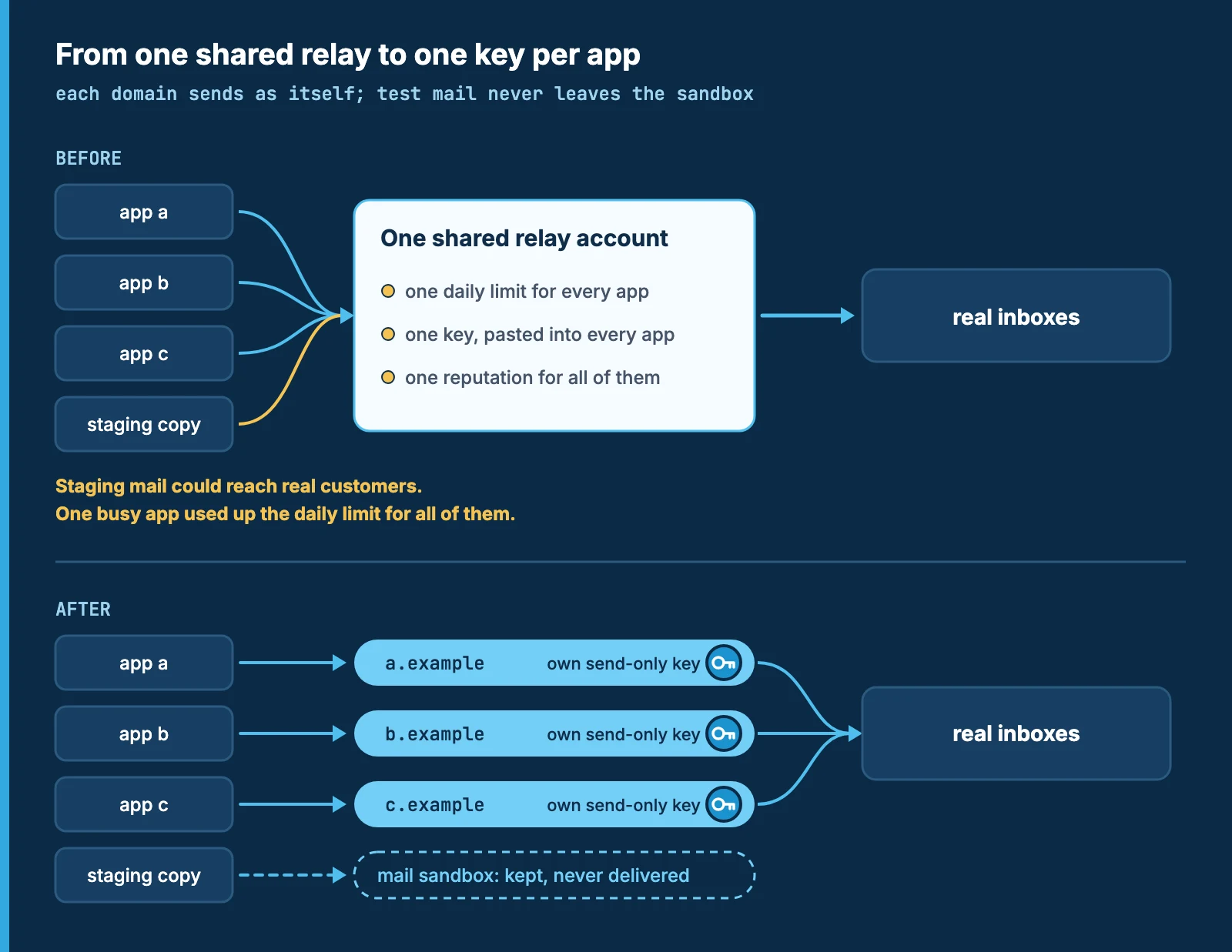
We host many apps on many domains, and they all used to send email through one shared SparkPost account. Three things went wrong:
- Blocked ports. Our cloud provider blocks the usual mail ports, so email timed out on new servers even with correct settings. Moving to port 2525 fixed it.
- A shared limit. The starter plan allowed 50,000 emails a month plus a daily cap, shared by every app. One busy app could use it up and stop email for everyone.
- Manual setup. Every domain's DNS records were copied by hand, credentials were shared, and staging could email real customers.
What we do now:
- Test and staging environments send to a mail sandbox that never delivers. Production never falls back to it.
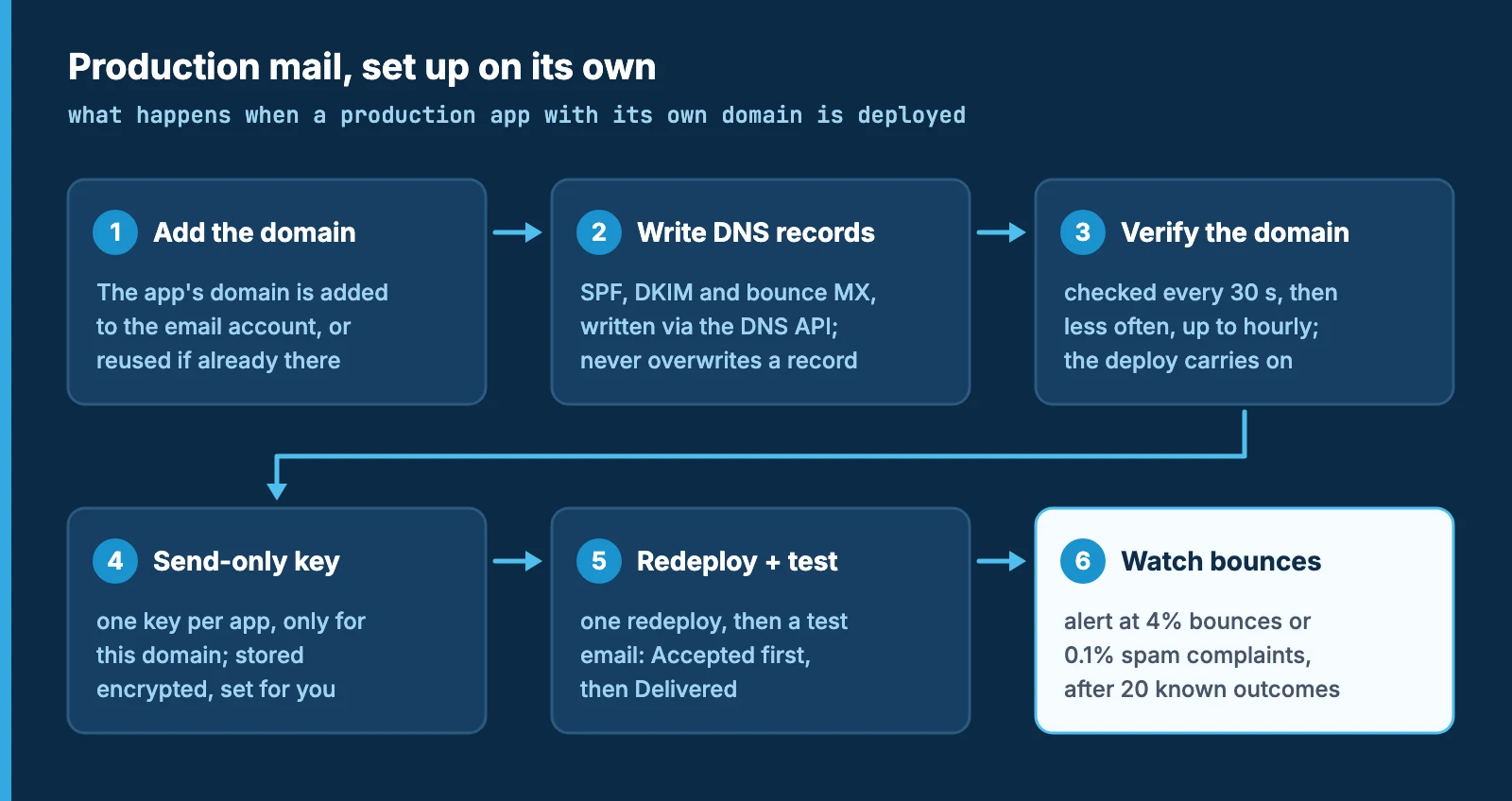
- In production, each app sends through Resend as its own domain. The platform adds the domain, writes the DNS records, waits for verification, creates a send-only key for that one domain, redeploys the app and sends a test email.
- We count delivered, bounced and spam-flagged emails, and alert at 4% bounces or 0.1% complaints.
- Removing an app revokes its key and removes only the DNS records we created.
Lesson: a shared setup fails all at once. Give each app its own domain, key and limits.
Short on time? The summary above is the whole story. Want the details, the examples and the fixes? Read on.
Almost every app sends email: password resets, invoices, sign-up confirmations. Nobody notices these messages until one fails to arrive.
We host a lot of apps, and they belong to different owners on different domains. One is a shop at shop.example.com. Another is a booking system at bookings.example.org. A third is an internal tool for a client at portal.example.net. Each of them sends mail, and each owner expects that mail to arrive in the inbox and look like it came from them.
For a long time we solved this the simple way. This post is about why the simple way stopped being enough, and what we do now.
How we sent mail before
Every app talked to one shared mail relay. An SMTP relay is a server whose job is to accept mail from your app and pass it on to the recipient's mail provider. SMTP is the standard protocol apps use to hand mail to that server.
We used SparkPost as the relay. It is a well-known, capable service, and it did its job. The setup in each app was a handful of settings that looked like this:
MAIL_MAILER=smtp
MAIL_HOST=smtp.relay.example
MAIL_PORT=587
MAIL_USERNAME=shared-user
MAIL_PASSWORD=shared-secret
[email protected]
Those values were typed in by hand when an app went live. Most apps got a copy of the same credentials. When a new domain needed to send mail, someone logged in to the relay's dashboard, added the domain, copied the records it asked for, and pasted them into the DNS for that domain.
What we overlooked, and how it showed up
The first sign of trouble was a timeout.
We moved some apps onto new cloud servers. The mail settings were copied across exactly. On the old servers, mail went out. On the new ones, every send failed with an error along the lines of "Connection could not be established ... Connection timed out".
We checked the password, the host name and the server firewall. Nothing changed. The same settings worked from a laptop and failed only from the new servers.
The cause had nothing to do with the relay. Our cloud provider blocks outbound connections on the usual mail ports (25, 465 and 587) at the network level, before traffic ever leaves their network. Many cloud providers do this to stop newly created servers from being used to send spam. No setting on the server can open it. The block is upstream of anything you control.
The fix for that one problem was small. Mail relays know about this, and most of them, SparkPost included, also accept mail on port 2525 for exactly this reason. We changed one number and mail flowed again.
If your app's mail works locally and times out on a cloud server, check whether the provider blocks outbound mail ports before you touch anything else. A timeout looks exactly like the mail service being down.
The timeout was the visible symptom. The bigger thing we had overlooked was the setup itself. One port number had broken every app at once, because every app shared one way of sending.
The daily sending limit
The second surprise was quieter. We were on a starter SparkPost plan with 50,000 emails a month, and the account also had a daily limit on how many emails it could send. 50,000 a month sounds like plenty when you split it evenly. Mail does not arrive evenly. For a long time we never came close, so nobody thought about it.
That limit belonged to the account, not to any one app. Every app shared the same allowance. A busy day on one app, such as a newsletter, a batch of invoices or a flood of sign-up confirmations, used up the allowance for all of them. Once the account hit the limit, mail from every app stopped until the next day, including password resets for apps that had sent almost nothing.
Nothing in the apps warned us. They handed mail to the relay, the relay refused it, and the failure showed up as a queue of retries and a few confused users asking why their reset link never came.
If several apps share one email account, they share its limits too. Know your plan's daily cap, watch how close you are to it, and remember that one noisy app can use up everyone's quota.
While we were digging, the other weak spots in that arrangement became obvious:
- One shared account for everyone. Every app sent through the same relay account. If one app started bouncing a lot of mail, the reputation of the whole account suffered, and it was hard to tell which app was responsible.
- Domain setup was manual. Every new domain meant someone copying records from a dashboard into DNS. That step was easy to forget, easy to get slightly wrong, and nobody was ever told it had been missed.
- Settings were typed by hand. Credentials were pasted into each app. Rotating them meant touching every app. A typo meant silent failure.
- Test mail was real mail. A staging copy of an app, pointed at the same relay, could send a real email to a real customer. Nothing in the setup prevented it.
None of these were failures of SparkPost. They were failures of how we used a relay. We had planned from the start to automate domain setup per app, and we never got to it. The shared relay had stayed "temporary" for much longer than it should have.
What we wanted instead
We wrote down what "good" would look like before choosing anything.
- Each app sends as its own domain. Mail from the shop says it is from
shop.example.com, and passes the checks that prove it. - Nobody edits DNS by hand. Adding the records a domain needs should happen on its own when we already manage that domain's DNS.
- Each app gets its own key. A key that can only send, and only from that app's domain. If it leaks, the damage stays with one app.
- Test and staging mail never reaches real people. It should be caught and kept somewhere we can read it.
- We find out when something goes wrong. Bounces and spam complaints should raise an alert before a mail provider starts blocking us.
Test and staging: catch everything
For every environment that is not production, mail goes to a mail sandbox. A mail sandbox is an SMTP server that accepts mail like a real one, stores it in an inbox you can browse, and never delivers any of it.
Every test or staging environment is wired to the sandbox automatically. A developer can trigger a password reset and read the email in the sandbox's web inbox, and a customer whose address sits in a copied database never hears about it.
The important rule runs in the other direction too. Once an app has a real sending setup for production, production is never allowed to fall back to the sandbox. A production app gets real mail or no mail. Quietly capturing a customer's password reset would be worse than an error, because nobody would know it happened.
Production: one domain, one key, set up on its own
For production we moved to Resend, an email API. An email API is a service you send mail through with a web request or with SMTP, and which also lets you manage domains, keys and events through its own API. That last part is what we needed. Every step a person used to do in a dashboard can now be done by our platform, in order, without a person.
Here is what happens when a production app with its own domain is deployed.
1. The domain is added
The platform adds the app's domain to the email account. If the domain is already there, for example because the owner set it up earlier, it reuses it.
2. The DNS records are written for you
To prove you are allowed to send from a domain, mail services ask you to publish a few DNS records. Two terms matter here:
- SPF is a DNS record that lists which servers are allowed to send mail for your domain.
- DKIM is a digital signature added to each message. The public half of the key sits in DNS, so receiving providers can check the message was not forged or changed.
For a domain like shop.example.com, the records look roughly like this. The exact values come from the email service.
| Purpose | Type | Name | Value |
|---|---|---|---|
| DKIM signature key | TXT | resend._domainkey.shop.example.com |
public key from the email service |
| Bounce handling | MX (priority 10) | send.shop.example.com |
mail server from the email service |
| SPF | TXT | send.shop.example.com |
v=spf1 include:... ~all from the email service |
When we already manage the domain's DNS, the platform writes these records through the DNS provider's API. It keeps a list of every record it created, so it can remove exactly those later. It never writes over an existing record at the same name. If the owner already has their own SPF record there, the platform stops and says so, because silently replacing it could break the owner's other mail.
When the DNS lives somewhere we cannot reach, the app's settings page shows the same records with a copy button, and a single "I have added these records" button. That is the only manual case left.
3. The domain is verified
DNS changes take a while to spread, so the platform asks the email service to verify the domain and then keeps checking. It checks every 30 seconds at first, then less and less often, up to about once an hour. The email service also sends a notice the moment the domain is verified, so most of the time we know within seconds.
While the domain is still being verified, the deploy carries on. The mail step is marked as skipped, with a plain reason, and never fails the deploy. Your app goes live on time, and mail switches on as soon as the domain is ready.
4. The app gets its own send-only key
Once the domain is verified, the platform creates a new key for that app. The key can only send mail, and only from that one domain. It is stored encrypted, and it is written into the app's mail settings for you. A value the owner typed in themselves is never replaced.
5. The app is redeployed once, and a test email is sent
The new settings need a restart, so the platform redeploys the production app once, waiting if a deploy is already running. Then it sends a test email to the person who set it up.
The settings page first shows "Accepted" for that test message. When the email service later reports that it reached the inbox, the page changes to "Delivered". If it bounced or was marked as spam, the page says that instead.
"Accepted" and "Delivered" are different things. Accepted means the email service took the message. Delivered means the recipient's mail provider took it. Only the second one tells you the setup really works.
6. Removing an app cleans up after itself
When a domain is removed from an app, or the app or its production environment is deleted, the platform reverses the setup. It revokes the app's sending key first. It removes the mail settings from the app. It deletes only the DNS records it created, and leaves any record someone has since edited by hand. It leaves the domain itself in the owner's email account, because the owner may use it for other mail, and verifying it again would cost them DNS work.
What we watch afterwards
The email service tells us about four kinds of event for every message: delivered, bounced, marked as spam (a "complaint"), and failed. Each app's settings page shows the running counts. We also check that every event really came from the email service by verifying its signature, and we ignore old or repeated events.
On top of the counts, there is one alert. Once an app has sent at least 20 messages with a known outcome, the alert fires if:
- bounces reach 4% of outcomes, or
- spam complaints reach 0.1% of outcomes.
Those are roughly the levels at which large email services start reviewing an account. We would rather hear about it from our own alert, while it is one app's problem, than from the email service after it has become everyone's. The alert clears itself when the numbers drop back under the line.
A high bounce rate usually means old or mistyped addresses. Complaints usually mean people did not expect the email. Both are cheaper to fix early.
Lessons
A shared setup fails all at once. One account and one set of credentials meant one port block stopped mail for every app, and one busy app could use up the daily limit for all of them. Separate domains and keys keep problems small.
"Temporary" manual steps become permanent. Domain setup never broke loudly, so it never became urgent. Treat every manual step you repeat as a bug.
Test mail needs a wall, and delivery needs proof. A sandbox removes the chance of mailing a real customer from staging. In production, watch what was delivered, not only what was accepted.
Checklist
If you are setting up mail for an app, or reviewing one you already run:
- The app sends from its own domain, with a from-address on that domain.
- The domain has SPF and DKIM records published, and the email service shows it as verified.
- The app uses its own send-only key, limited to its own domain.
- Credentials live in the app's settings or secret store, never in the code.
- You know your email plan's daily or monthly sending limit, and you get warned before you reach it.
- The server can reach the email service on the port you configured. If your cloud provider blocks 25, 465 and 587, use the alternative port your service publishes.
- Test and staging environments send to a mail sandbox, and production can never fall back to it.
- After setup, a test email is sent and confirmed as delivered, not only accepted.
- Bounces and spam complaints are counted, with an alert near 4% bounces or 0.1% complaints.
- Removing an app revokes its key and removes only the DNS records that were created for it.
None of this is exotic. It is the same few steps we used to do by hand, done in the right order every time, by something that does not forget.